ShotFile

ShotFile

Normally you take a screenshot. macOS saves it as Screenshot 2029-04-12 at 22.34.12.png and drops it on your Desktop.


ShotFile intercepts it. You type a name, pick a folder, and it’s filed. That’s it.

If you want to annotate on the image, or add additional context to the image you can as well optionally.

ShotFile lives in your menu bar. No Dock icon. No account. Updates install in-app when you’re ready.


Download and install

Mac only: Apple Silicon (M1 and later).

Not sure which Mac you have? Apple menu → About This Mac. If you see a Chip line, this build is for you. Intel Macs have not been sold since 2020.


Step 1
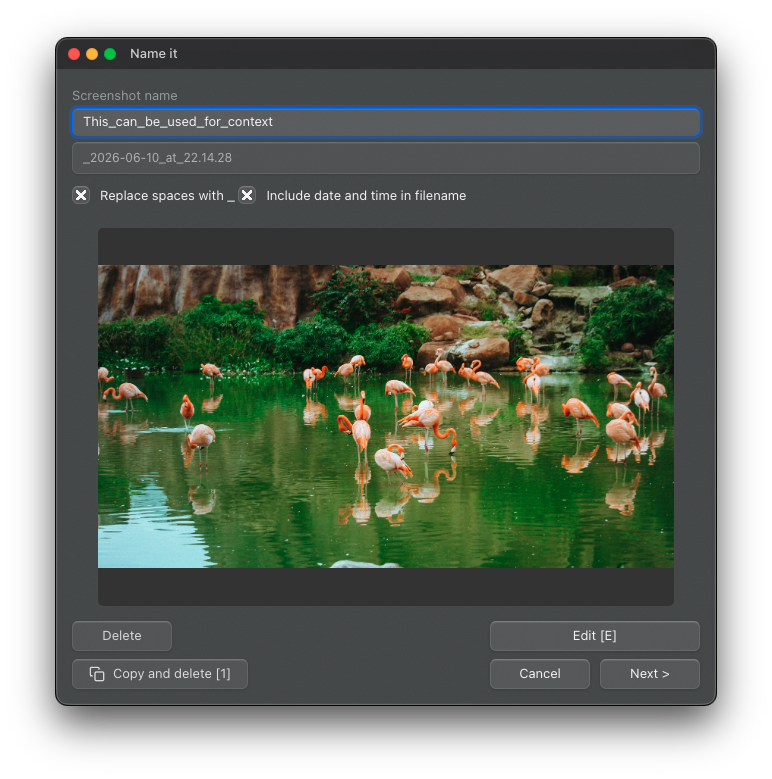
Name it

Type a clear name. Add tags like Improvement or some meta data that adds to the filename. Helps with searches afterwards, and can also be used to provide additional context to LLM’s.

ShotFile rename window

Step 2
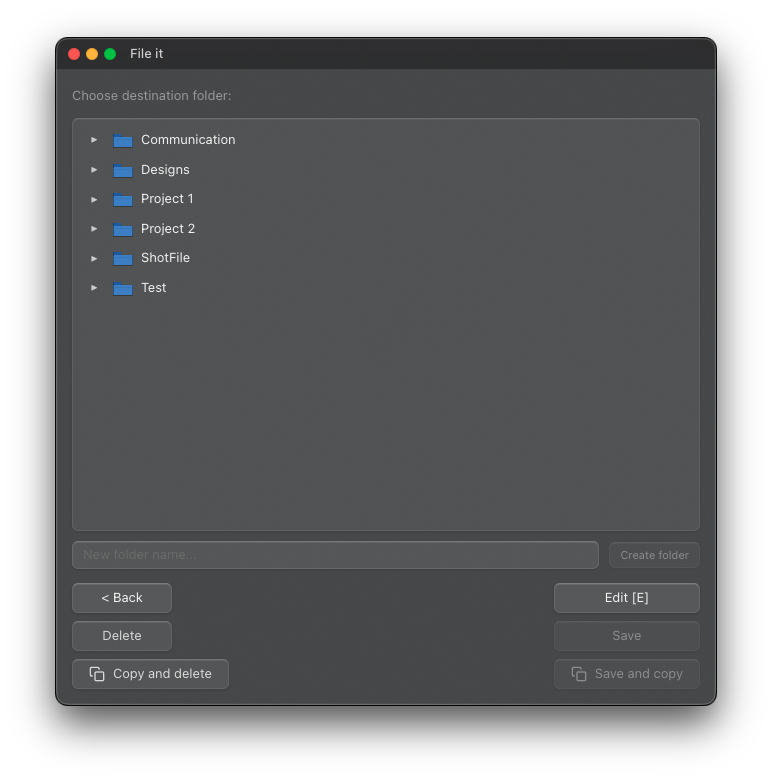
File it

Pick a folder under your destination root. Create folders and subfolders inline. Save, or save and copy to clipboard in one click.

ShotFile file-it window

Step 3
Edit before filing

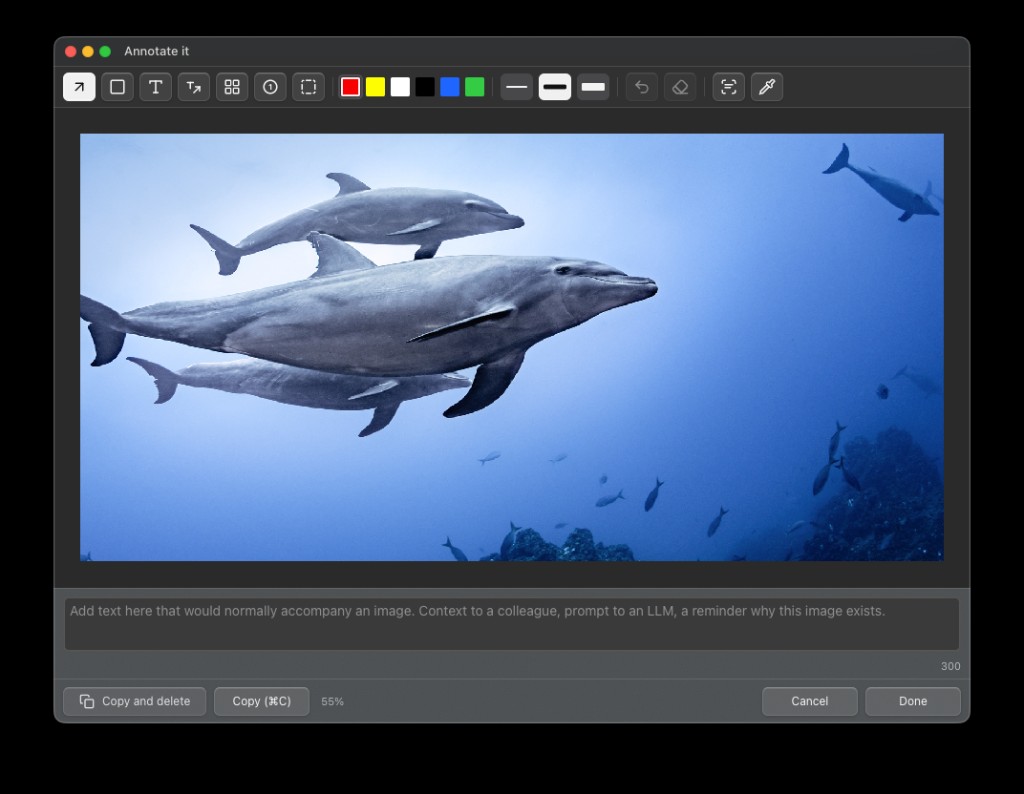
Open the editor from the rename screen or the file screen with a single click or hotkey. Annotate directly on the screenshot before filing it, or copying and deleting. Arrows, boxes, text labels, blur for sensitive content, and step-number markers for indicating order. Find the hex code and copy direct from the picker with cmd+c. Select and modify any annotation after placing it.

ShotFile annotation window
  • Arrow, Box, Text, Blur, Step numbers: everything a person working on a computer needs to help inform and streamline communication.
  • Select and modify: click any annotation to select it. Change colour or thickness from the toolbar. Drag to reposition. Resize with handles.
  • Zoom: Cmd+scroll to zoom centred on the pointer. Precise annotation on high-resolution Retina screenshots.
  • Undo, duplicate, delete: Cmd+Z, Cmd+D, Backspace. Full keyboard control.

Attach context to the image

Every shared screenshot loses its context the moment it leaves your screen. The person receiving it has to ask what it shows, what went wrong, or what you expected to happen.

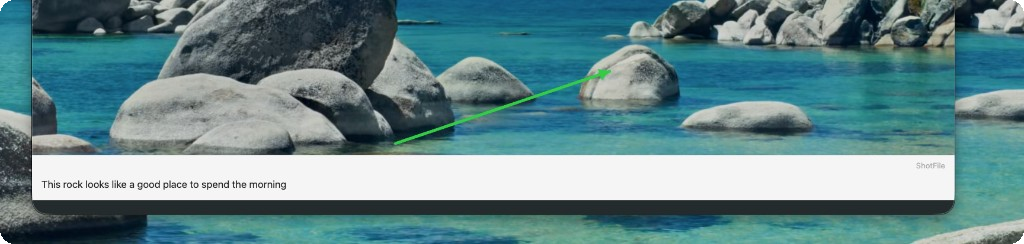
ShotFile lets you write a note directly below the image before exporting. The note becomes part of the PNG: it travels with the file wherever it goes. This ensures no “Information decay” or the image and information does not suffer from the “Telephone effect”. From the original message.

ShotFile
Add text here that would normally accompany an image. Context to a colleague, prompt to an LLM, a reminder why this image exists.

Drop the exported PNG straight into your LLM of choice. The filename gives project and type context. The annotations show what’s wrong. The note tells it what to do. One paste, a well-formed instruction to an LLM with 3 possibilites to convey what you want or are asking. A perfect addition to your workflow.

Example export

Exported PNG with annotations and an attached context note below the screenshot

A real export: annotated screenshot plus the context bar baked into the PNG — ready to paste into a chat or where ever you like.


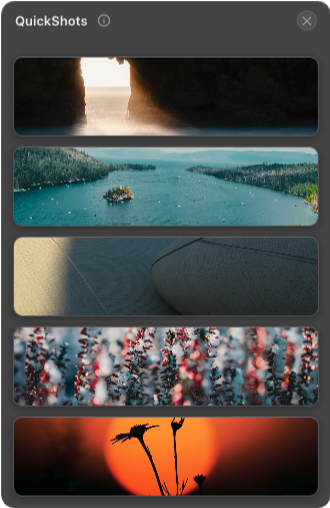
QuickShots

A small stack of your latest five screenshots for quick access. Reopen any shot in the editor with one click, switch between them while annotate is open, dismiss ones you do not need, copy with a click and drag and drop onto where ever you want.

You can drag shots to other windows without the stack disappearing and your file being a single use drag and drop. The window can be moved anywhere for your convenience.

ShotFile QuickShots stack

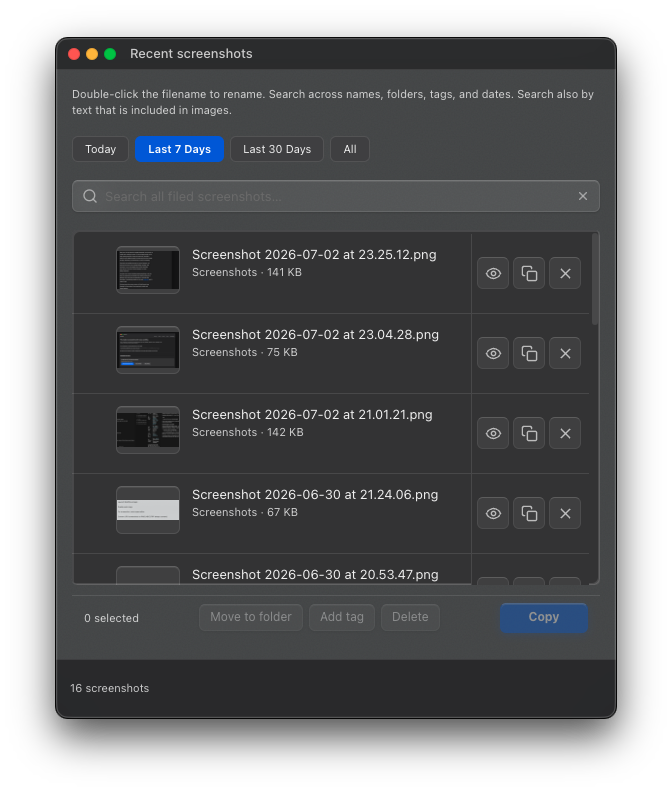
Recent screenshots

Your ten most recently filed screenshots in one list, open it from the menu bar camera. No Finder, no hunting.

Each item has an eye button to open the shot in the editor, and an X to dismiss it from the list. You can select any number of rows, then copy them all from the footer in one click or copy a single item with the copy button.

ShotFile recent screenshots panel

Clipboard history

View up to the last 10 clipboard items, images and text. Both types are shown. Open any item in detail and copy it again.

Star your favourites to keep useful snippets in a separate tab for quick access. You can also modify and update these snippets.

ShotFile clipboard history list

Everything else

  • Quick tags: one-click labels append to filenames. Useful for search, useful for providing context to an LLM quickly. Completely customisable from settings.
  • Auto-open the editor on every screenshot for annotation heavy work.
  • Hotkey setting for Clipboard history
  • Delete and copy: copies image to clipboard, and deletes the file from your Mac.
ShotFile settings window

Install via Homebrew

If you have Homebrew installed:

brew tap z4rd0z1/shotfile
brew install --cask shotfile

To update:

brew update && brew upgrade --cask shotfile

brew update refreshes the tap so Homebrew sees new versions.

Download and install

Mac only: Apple Silicon (M1 and later).

Not sure which Mac you have? Apple menu → About This Mac. If you see a Chip line, this build is for you. Intel Macs have not been sold since 2020.

  1. Click the download button above. The zip saves to your Downloads folder.
  2. Double-click the zip, then drag ShotFile.app into Applications.
  3. Open ShotFile.app from Applications (double-click it, or find it with Spotlight).
  4. When a new version is available, ShotFile shows a welcome screen on launch with an Update ShotFile button. Click it to install, or choose Not now and update later.
  5. Press Cmd+Shift+4 to take a screenshot. The application should open on the rename page.

Questions

Why does ShotFile exist?

macOS dumps screenshots with long, identical names onto your desktop or into a folder. That makes them hard to find later and useless for tools that read filenames. ShotFile catches each new shot, and gives you a fast rename-and-file step so every image lands with a clear name in the right folder. Also the edit is a lot more functional and easier to use.

Does ShotFile send anything to the internet?

Your screenshots stay on your Mac. The only network use is checking GitHub for app updates. When one is available, ShotFile shows an update screen on launch — click Update ShotFile to install, or dismiss it until next time.

Where does it put renamed screenshots?

By default, ~/Screenshots/. You can change the watch folder and destination root in Settings.

Why only one download? What about Intel Macs?

Apple has not sold new Intel Macs since 2020. The Apple Silicon build is the right download for almost everyone today (M1, M2, M3, M4). If About This Mac shows an Intel processor, you need a separate Intel build. Check the download page for your version if an Intel file is listed.

No warranty. macOS and Mac are trademarks of Apple Inc.
Made to solve and improve my own worklife. Hopefully could help other people along the way.
Inquiries, questions and improvement suggestions to info@shotfile.app
ShotFile 1.6.4